
How to Schedule a Post on Facebook: Pages, Profiles + Groups

I run a Facebook group called Freelancers Who Work Smart, Not Hard, but, for ages, I managed it the hard way, not the smart way.
The hard way looks like this: trying to remember to post regularly (when I sometimes can’t even remember what day of the week it is), coming up with some of my best ideas at 3 a.m. (before promptly falling asleep and forgetting them), and posting sporadically with neither consistency nor strategy. Days or even weeks (eek) would go by without me posting, and the group would lose momentum.
Somewhat ironically, things changed when I went on maternity leave. Before taking three months off work, I scheduled two posts a week to keep the group active while I was dealing with diapers. In doing so, the group became more active than it’s ever been!
So in the interest of working smarter, not harder — whether you run a Facebook Page, a profile in professional mode, or a Facebook Group — let me walk you through how to set up a similar process.
The short version: you can schedule a post on Facebook natively from a Page, a professional-mode profile, or a Group you admin, but not from a regular personal profile.
In this guide, I’ll walk you through how to schedule a post on Facebook three ways: in the Facebook app, in Meta Business Suite, and with Buffer. I’ll also cover what to do when the schedule option goes missing, and how to find, edit, or delete posts you’ve already scheduled.
Key takeaways
- You can schedule a post on Facebook natively from a Facebook Page, a profile in professional mode, or a Facebook Group you admin or moderate. Regular personal profiles can’t schedule posts.
- Meta Business Suite schedules posts to Facebook Pages and Instagram, but not to Facebook Groups.
- Buffer publishes scheduled Facebook Page posts automatically and sends Facebook Group posts to your phone as a notification to publish yourself. It doesn’t connect to personal or professional-mode profiles.
- If the option to schedule is missing, the most common causes are posting from a regular personal profile or not having admin access to the Page or Group.
- You can edit, reschedule, or delete a scheduled post on Facebook, Meta Business Suite, or, for posts you scheduled there, in Buffer’s calendar.
- Buffer’s analysis of more than 1 million Facebook posts found that posts shared at 9 a.m. on Thursday performed best.
Can you schedule a post on Facebook? (Pages, profiles, and Groups)
Yes, you can schedule a post on Facebook. But where you can schedule depends on the type of Facebook account you’re posting from:
| Facebook account type | Can you schedule with Facebook’s own tools? | Can you schedule with Buffer? | How the scheduled post publishes |
|---|---|---|---|
| Facebook Page | Yes — Facebook Pages can schedule posts in the Facebook app or in Meta Business Suite. | Yes — Buffer can schedule posts, Reels, and Stories to Facebook Pages. | Automatically at the scheduled time, with either tool. |
| Profile in professional mode | Yes — professional-mode profiles can use Facebook’s built-in scheduling. | No — Buffer doesn’t connect to Facebook profiles, including professional-mode profiles. | Automatically, when scheduled with Facebook’s own tools. |
| Regular personal profile | No — Facebook doesn’t offer scheduling on regular personal profiles. | No — Buffer doesn’t connect to Facebook profiles. | Not possible. Turn on professional mode or post from a Facebook Page instead. |
| Facebook Group | Yes — Group admins and moderators can schedule posts from inside the Group. Meta Business Suite doesn’t support Groups. | Yes — Buffer schedules Facebook Group posts using mobile notifications. | Automatically when scheduled inside the Group. With Buffer, you get a phone notification at the scheduled time and publish the post yourself. |
Facebook Pages
Pages have the most options. You can schedule from the Facebook app, from Meta Business Suite, or with a third-party tool like Buffer, and posts publish automatically at the time you pick.
Personal profiles (and professional mode)
Facebook doesn’t offer scheduling on a regular personal profile. Turning on professional mode for your profile unlocks Facebook’s built-in scheduling. Third-party tools are a different story: Meta’s API doesn’t let them auto-publish to personal profiles, so at best they’ll send you a reminder to post yourself. Buffer doesn’t connect to personal or professional-mode profiles at all, so if that’s where you post, Facebook’s own tools are your route.
Facebook Groups
If you’re an admin or moderator, you can schedule posts from inside the Group itself, and Groups also support recurring scheduled posts. Meta Business Suite doesn’t support Groups. Buffer can schedule Group posts, but because Meta doesn’t allow automatic publishing to Groups, Buffer sends you a notification at the scheduled time and you publish the post from your phone.
How to schedule a post on a Facebook Page or professional profile
If you have a Facebook Page or a profile in professional mode, you can create, schedule, and manage posts directly in the Facebook app.
On the Facebook app
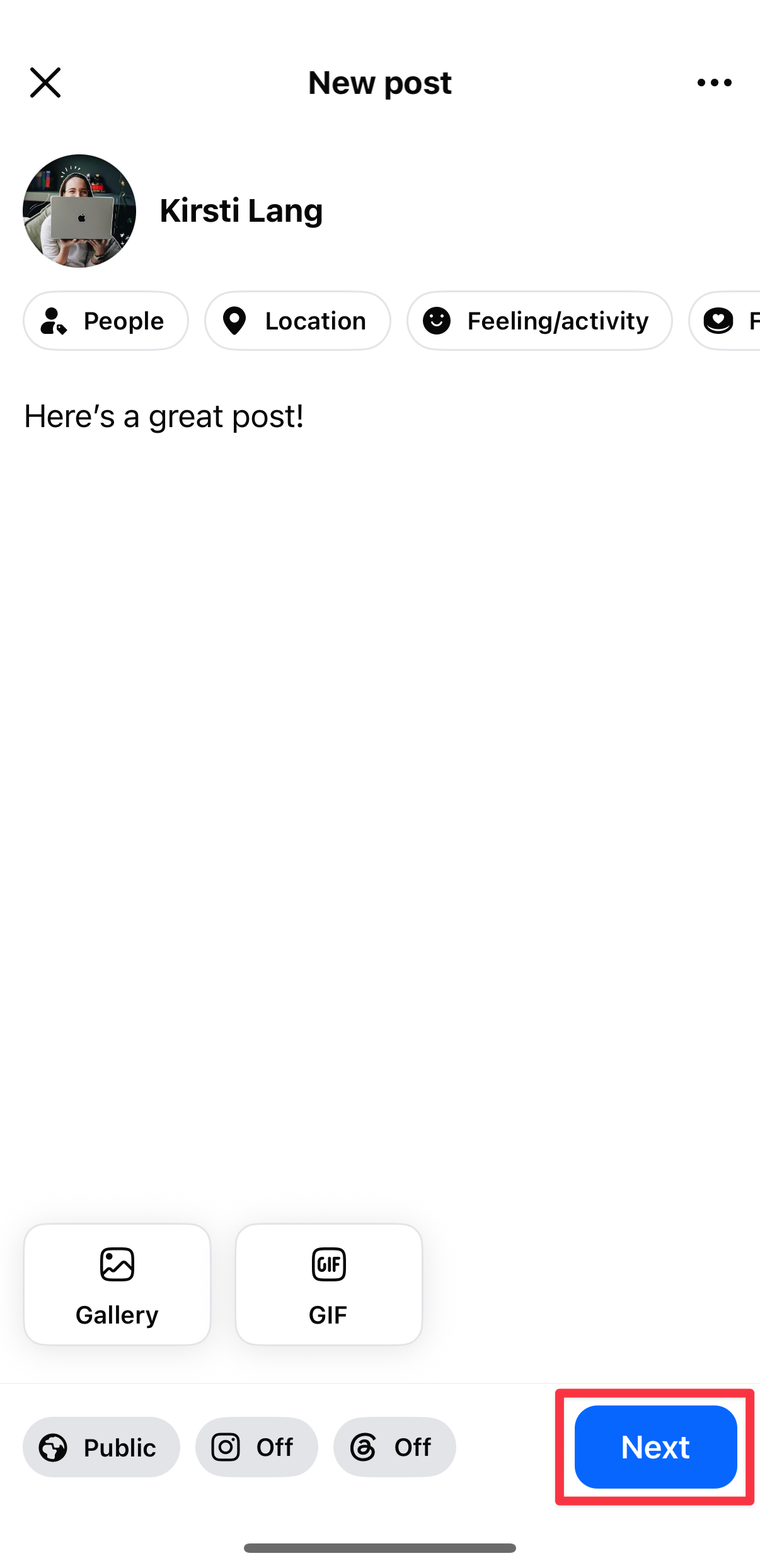
- At the top of your feed, Page, or profile, tap ‘What’s on your mind?’
- Create your post.
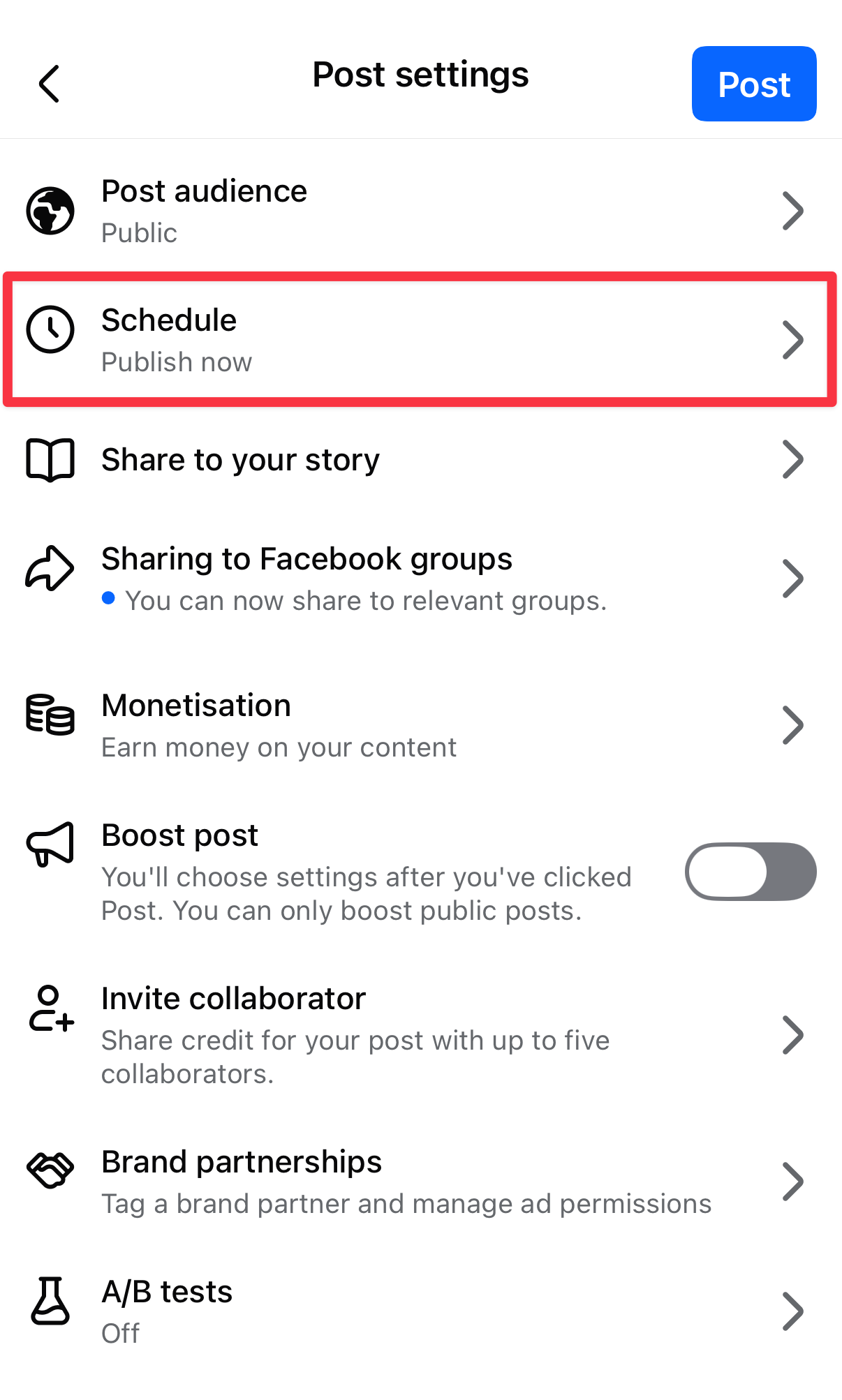
- Tap ‘Next,’ then ‘Schedule’ to open post settings and scheduling options.
- Choose a time to publish your post, hit ‘Save,’ then ‘Schedule.’
How to schedule a post in a Facebook Group
This is the one I use most. If you’re an admin or moderator of a Group:
- Tap ‘Write something’ in your group and create your post.
- Tap the calendar icon to set a date and time, then tap ‘Schedule’.
Groups also let admins set up recurring posts, which is handy for a weekly thread like an intro post or a “wins of the week” check-in.
How to schedule a post on Facebook using Meta Business Suite
Meta Business Suite is a free tool from Meta that lets you manage your Facebook and Instagram content in one place.
Compared to Facebook’s native scheduling in the app, Meta Business Suite gives you more control and lets you post to both platforms at once, though it is a bit more complicated to use.
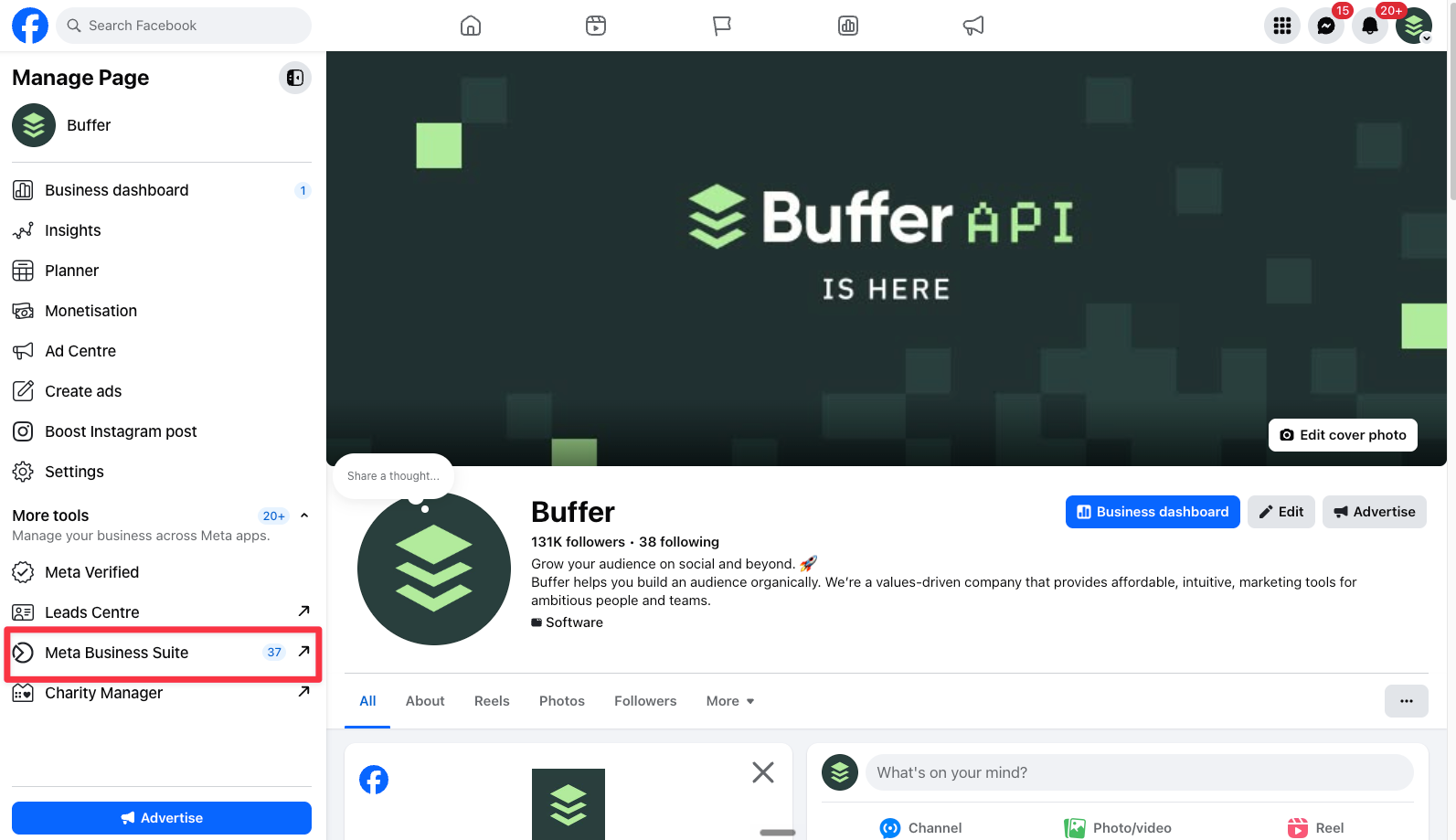
- Navigate to the business Page you manage.
- Click on ‘Meta Business Suite’ on the left-hand menu.
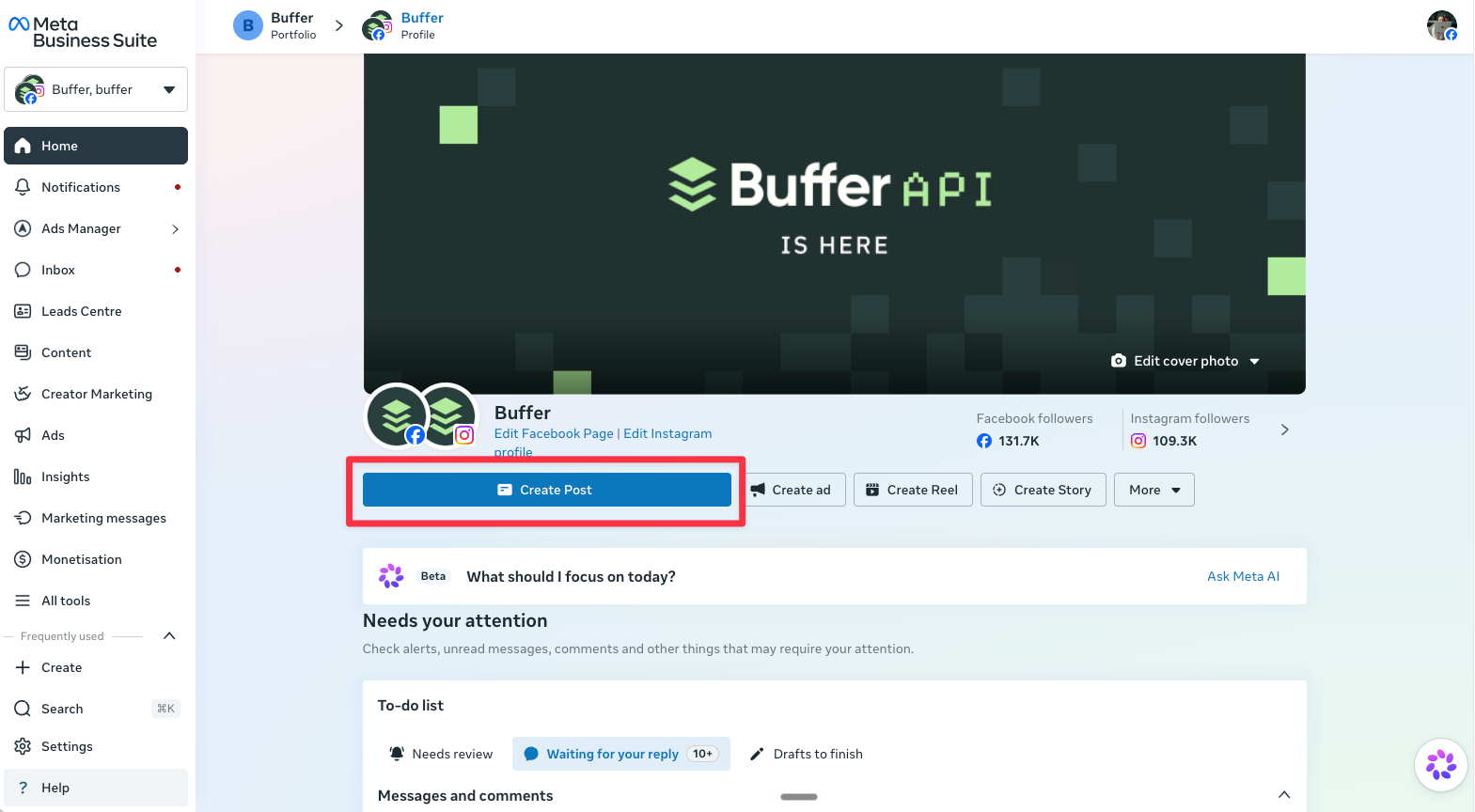
- Click ‘Create post’: Choose where you want to publish (Facebook, Instagram, or both), then write your post, add media, and links.
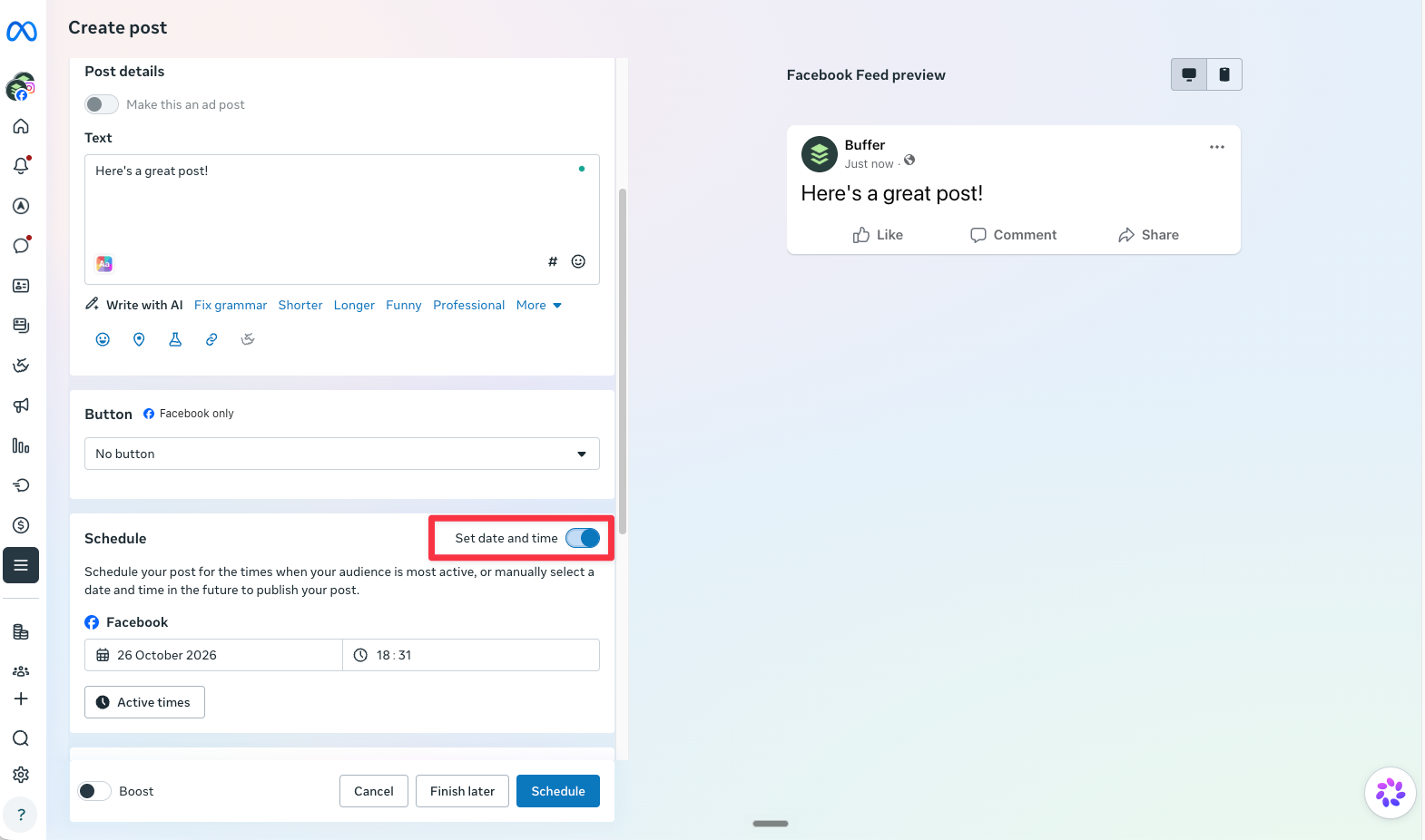
- Scroll down to ‘Scheduling options’ and toggle ‘Set date and time’.
- Pick the date and time you want the post to go live.
- Click ‘Schedule’ to confirm.
📌
Note: Meta Business Suite doesn’t support posting or scheduling to Facebook Groups.
How to schedule a post on Facebook using Buffer
If you manage more than one channel, or you’d rather not open Facebook every time you post, a social media management tool like Buffer lets you schedule everything from one place. (Yes, this is the Buffer blog, so factor that in.) Buffer works with Facebook Pages and Facebook Groups, but not personal or professional-mode profiles.
Here’s how, in four steps:
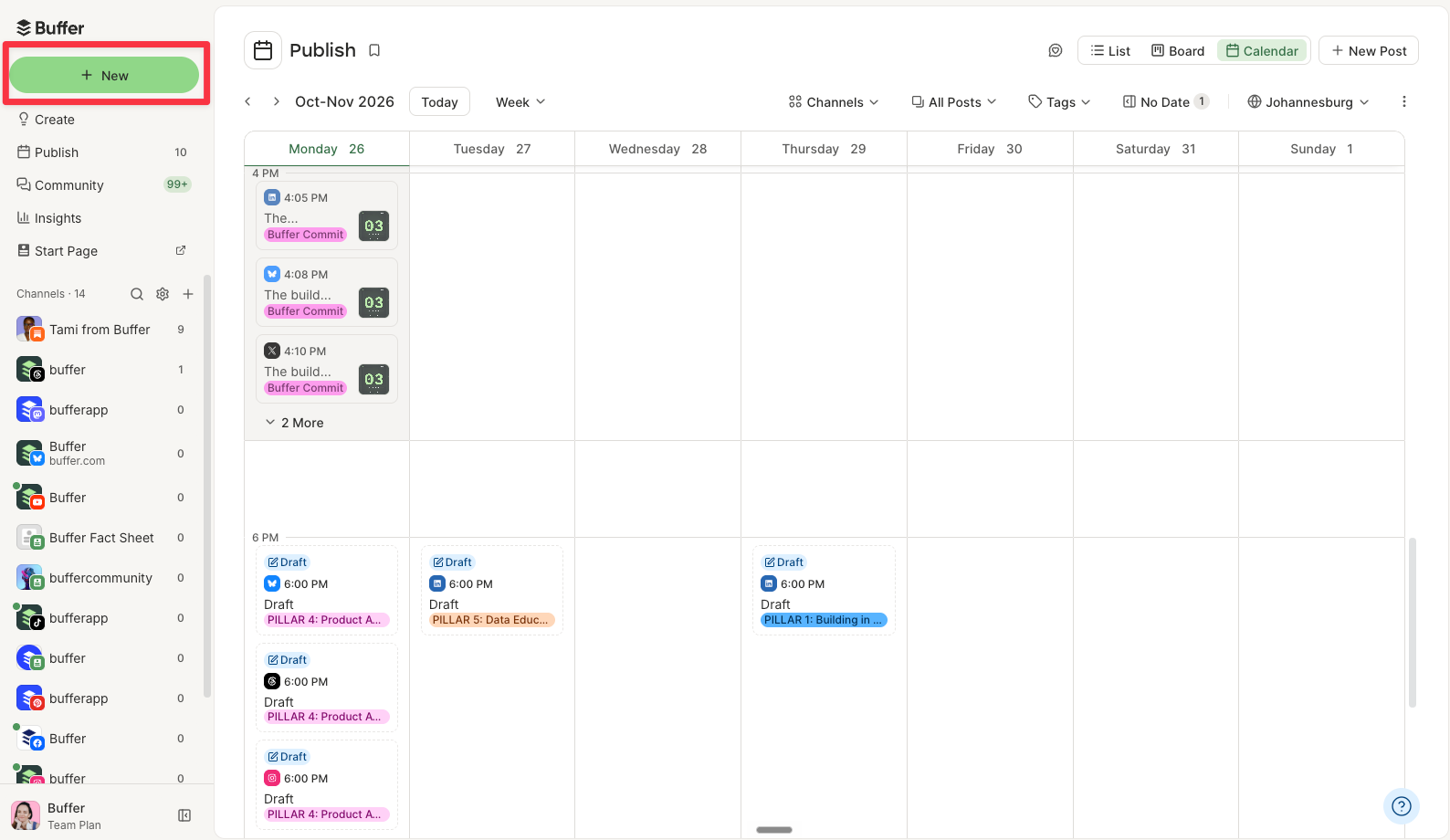
- Go to your Buffer dashboard and click ‘New’ > ‘Post’ to open the composer.
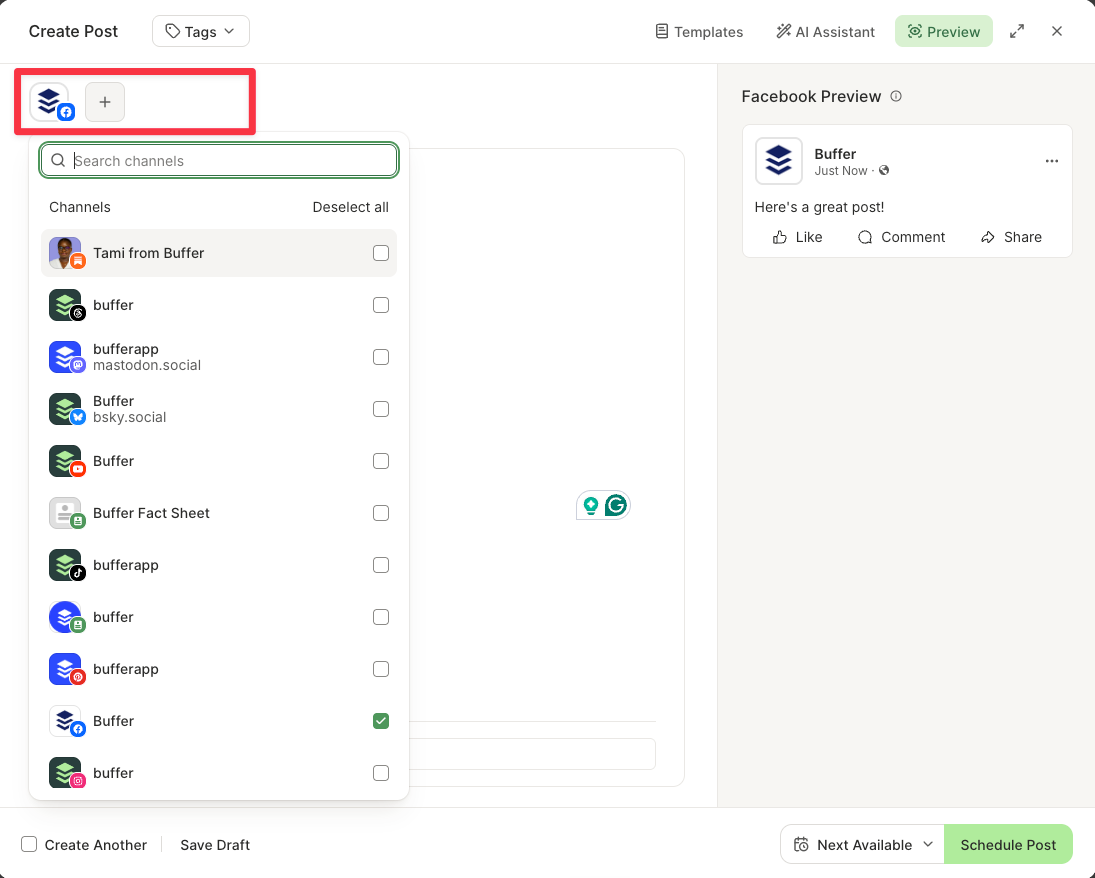
- Select your Facebook Page or Group.
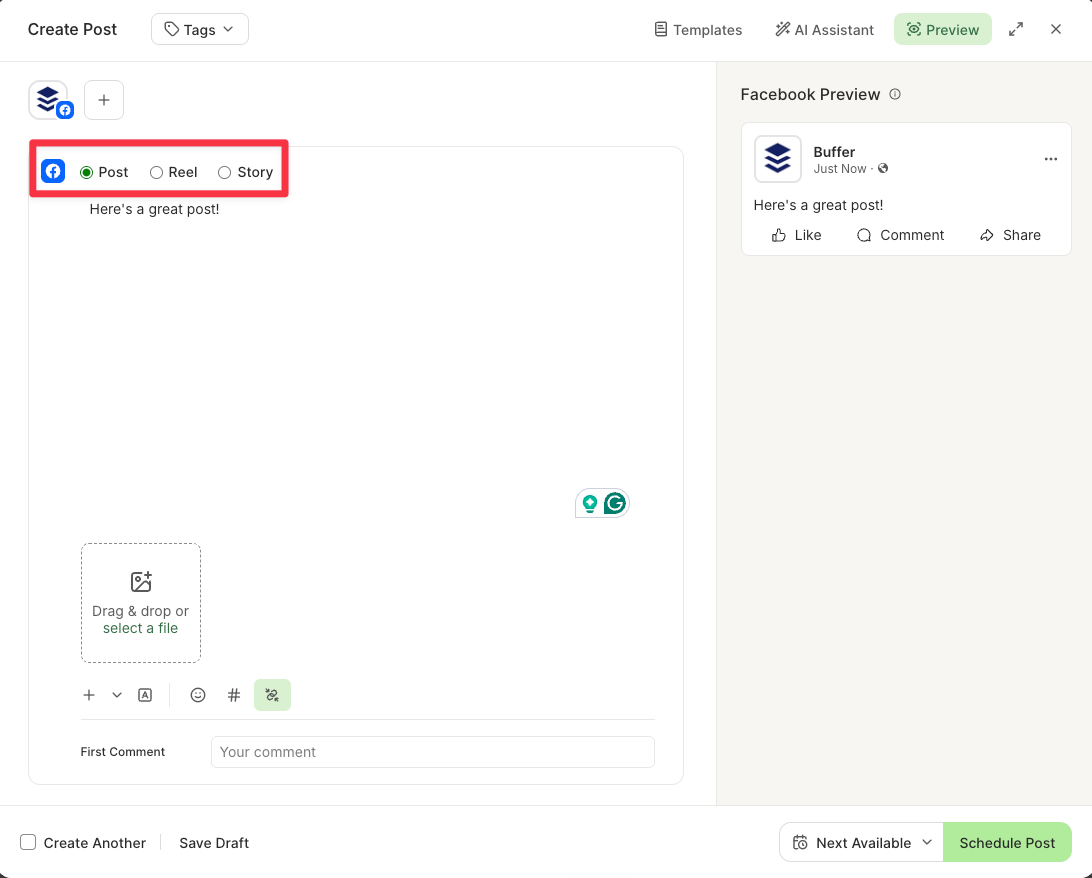
- Create your Facebook post.
- Schedule your post.
1. Go to your Buffer dashboard
Once you’ve signed up for Buffer and connected your Facebook Page or Group, you’ll see your Buffer dashboard.
2. Select your Facebook Page or Group
A pop-up where you can craft your post will appear. Choose Facebook from the channel list on the top left. You can also add any other channels you have connected to crosspost your content elsewhere.
3. Create your Facebook post
Use an idea you’ve saved or start from scratch. Choose ‘Post,’ ‘Reel,’ or ‘Story,’ depending on what you want to share — Reels are available on Facebook Pages only. Upload your media and add your caption.
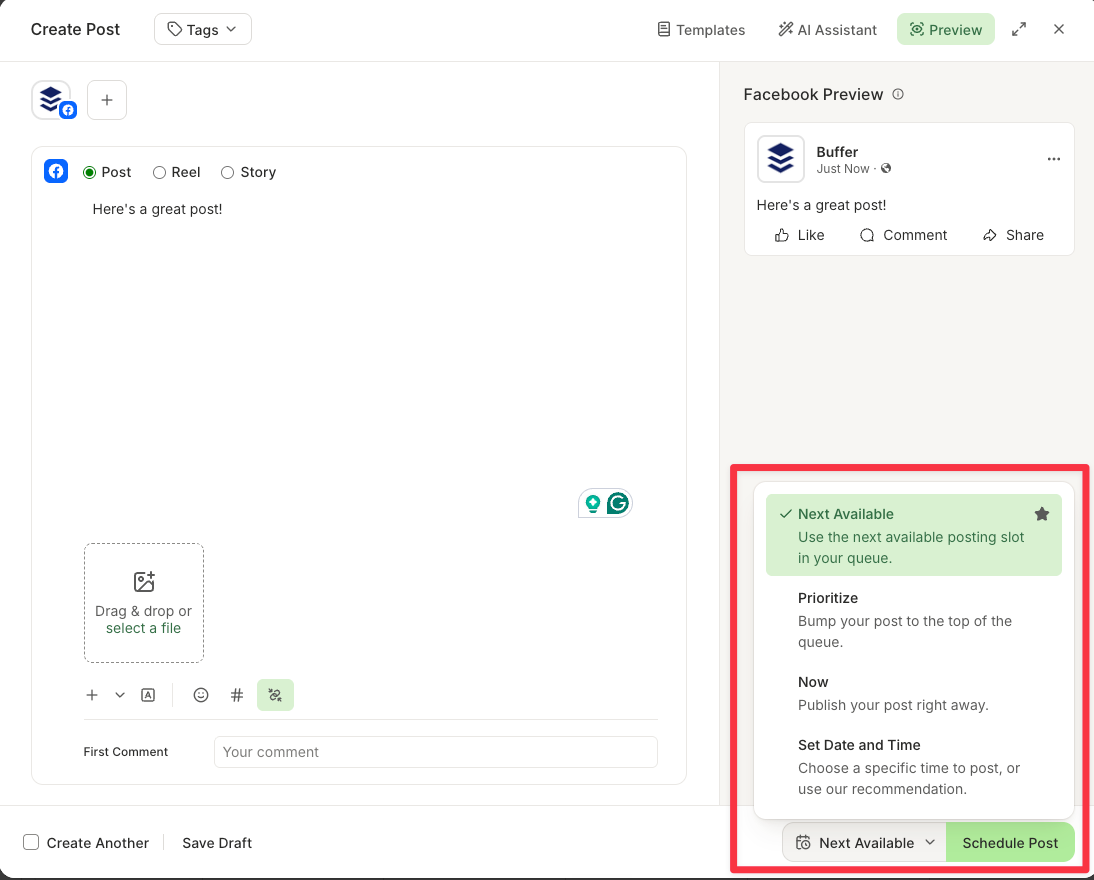
4. Schedule your post
Once you’ve crafted your post, choose when it goes out:
- Next Available: Add the post to the next open slot on your posting schedule.
- Prioritize: Put the post at the top of your queue so it goes out next.
- Set Date and Time: Schedule the post for a specific date and time.
- Now: Share the post immediately.
Then click ‘Schedule Post.’
Buffer is the tool behind this blog, so read that column with that in mind! I’ve tried to be straight about where Facebook’s own tools do the job just as well.
| Feature | Facebook app (native) | Buffer | Meta Business Suite |
|---|---|---|---|
| Supported platforms | Facebook, Instagram | Facebook, Instagram, X, LinkedIn, TikTok, Pinterest, YouTube, Google Business Profile, Bluesky, Mastodon, Threads | Facebook, Instagram |
| Facebook Group post scheduling | Yes — for admins and moderators | Yes — with mobile notifications | No |
| Content scheduling | Yes — limited to Facebook and Instagram | Yes — schedule to all connected channels from one place | Yes — limited to Facebook and Instagram |
| Scheduling features | Basic scheduling with limited options | Posting queue, custom time slots, and suggested posting times | Basic scheduling without queue management |
| Create space | No — no central content library or idea board | Yes — a dedicated space to save ideas, photos, GIFs, PDFs, videos, links, or text and turn them into posts later | No — no central content library or idea board |
| AI assistance | No | Yes — AI Assistant for drafting and rephrasing posts | Yes — AI suggestions for captions and post improvements |
| Content repurposing | No | Yes — customize the copy and media for each channel in a single post | No |
| Customized landing page | No | Yes — a free link-in-bio Start Page | No |
| Team collaboration | No | Yes — draft approvals, comments, role assignments | No |
| Focused scheduling | No — you schedule inside Facebook | Yes — you schedule without opening Facebook, so no feed to get pulled into | No — you schedule inside Facebook or Instagram |
| Access to latest features | Yes — immediate access to platform-specific features | Indirect — may not always have immediate access to platform-specific features | Yes — immediate access to Facebook and Instagram updates |
| Ease of use | Simple interface, but can feel limited | One dashboard for all channels. Group posts still need a tap on your phone to publish | Can be complex to navigate, especially for beginners |
| Pricing | Free | Free plan for up to three channels. Paid plans from $5 per channel per month, billed annually | Free |
How to find, edit, or delete scheduled posts on Facebook
Spotted a typo? Or perhaps plans changed and that “sale ends Friday” post is now wrong? Good news: you can find, edit, reschedule, or delete a scheduled Facebook post. Where you do it depends on where you scheduled it, because a post you scheduled in a third-party tool like Buffer lives in that tool until it publishes, not in Facebook.
How to find your scheduled posts on Facebook
- Facebook app: On your Page or professional profile, tap ‘Manage Posts’ to see everything you’ve scheduled. You’ll find the option below your bio, just above your most recently published post. Then tap the ‘Filters’ button and change the post status to scheduled. Tap on each scheduled post to edit, delete, or reschedule it.
- Meta Business Suite: On desktop, click ‘Business Dashboard’ > ‘Planner’ in the left-hand menu. You’ll be taken to a content calendar, where you can hover over each scheduled post to edit, delete, or reschedule it.
- Facebook Groups: Admins can see the Group’s scheduled posts by heading over to the Group’s ‘Community home’ page, choosing ‘Admin tools’ from the menu on the left > Scheduled posts.
- Buffer: Open your Facebook channel’s queue, or switch to the calendar view to see every scheduled post across your channels.
How to edit or delete a scheduled post in the Facebook app
- Head over to your Page or professional profile, tap ‘Manage Posts’ to see everything you’ve scheduled. You’ll find the option below your bio, just above your most recently published post.
- Tap the ‘Filters’ button and change the post status to ‘Scheduled’ to see a list of your scheduled posts.
- Tap on each scheduled post to edit, delete, or reschedule it.
How to edit or delete a scheduled post in Meta Business Suite
- On desktop, click on ‘Business Dashboard’ in the left-hand menu, then choose ‘Planner.’ You’ll be taken to a content calendar.
- Hover over each scheduled post to edit, delete, or reschedule it.
How to edit or delete a scheduled post in Buffer
- Open the calendar or queue in Buffer to see all your scheduled content.
- Click the post, then click the pencil icon to edit it. Make your changes and click ‘Save.’
- To reschedule without changing anything else, drag the post to a new date and time on the calendar.
- To delete it, hover over the post, click the three dots, and select ‘Delete.’
Why can’t I schedule a post on Facebook?
If the scheduling option is missing or won’t work, it’s almost always one of these:
| Problem | Likely cause | Fix |
|---|---|---|
| There’s no scheduling option at all | You’re posting from a regular personal profile | Post from a Facebook Page, or turn on professional mode for your profile |
| You can’t schedule in a Group | You’re not an admin or moderator of the Group | Ask a Group admin to schedule it, or to make you a moderator |
| The option is missing on a Page you help manage | Your access to the Page doesn’t include creating content | Ask a Page admin to update your access |
| Your Group doesn’t show up in Meta Business Suite | Meta Business Suite doesn’t support Facebook Groups | Schedule from inside the Group in the Facebook app, or use Buffer’s mobile notifications |
| Buffer won’t connect to your profile | Buffer connects to Facebook Pages and Groups, not profiles | Post from a Page, or use Facebook’s own tools for your profile |
| A specific post won’t schedule in Buffer | That post type isn’t supported (polls or carousels, for example) | Check which post types Buffer supports in our guide to using Facebook with Buffer |
Where did the schedule post button go on Facebook?
Facebook makes menu and interface changes fairly often, so it’s probably just on a different screen! In the Facebook app, you can find the scheduled button by writing your post, then tapping ‘Next’ > ‘Schedule’ > pick a time > ‘Save’ > ‘Schedule.’
In a Facebook Group, tap the calendar icon after writing your post. In Meta Business Suite, scroll down to ‘Scheduling options’ and toggle ‘Set date and time’. If none of those appear, check the table above: you’re most likely on a regular personal profile or don’t have admin access.
Why schedule Facebook posts? 5 benefits
Whether you’re trying to increase brand awareness, grow your audience, build community, or generate leads (or all four!), scheduling your Facebook posts in advance helps with all of them.
1. Maintain consistency
When you post regularly, your audience knows what to expect and when to expect it. And you stay top of mind so they don’t forget who you are and what you do.
The numbers back this up. Buffer’s data team analyzed engagement across all platforms Buffer supports — Instagram, Facebook, TikTok, LinkedIn, Bluesky, Threads, X, YouTube, Mastodon, and Pinterest. And guess what? The most consistent posters received five times more engagement per post than users who posted inconsistently.
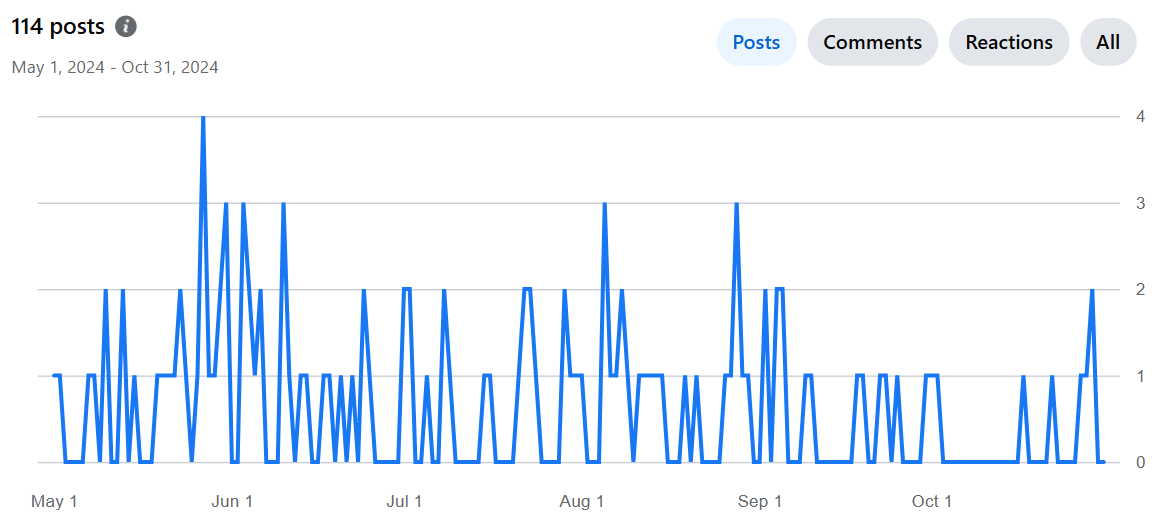
From my own small and less impressive dataset, I can definitively say that scheduling = consistency. Check out my stats below. I was on maternity leave (with scheduled posts) from May 1 to July 31. There’s clearly a lot more activity happening in the former half of the chart compared to when I relied on my ad-hoc posting (after August 1).
So Buffer’s data and my one small group point the same way.
2. Create higher-quality content
Scheduling gives you time.
Instead of scrambling to come up with something on the fly, you can plan ahead and make sure each post is thoughtfully crafted and not just checking the box of, “Oh heck, I need to post something before people think I’ve disappeared.” (Yes, I am speaking from personal experience.)
A post you wrote on Sunday and reread on Tuesday is almost always better than one you dashed off in five minutes. Plus, you’ve got a buffer (no pun intended) to refine things before hitting publish.
3. Be more efficient and save time
Posting on Facebook can eat a surprising amount of time, especially if you’re creating your posts one by one on the day you plan to share them.
Switching between tasks all day is also draining. Did you know, according to a 2024 study, multitasking makes you slower, less accurate, and more mentally drained? I certainly don’t need that in my life, and I doubt you do either.
When you schedule your posts ahead of time, you can batch your work instead of breaking your flow to post on the fly. Setting aside an hour or two once a week to plan and schedule means you’ll save time, and you won’t be breaking your focus every day to post.
As I mentioned earlier, I created my content in batches before I went on maternity leave, which made the task more manageable. So much so that it’s the most consistent I’ve ever been, despite being away from my desk.
4. Optimize reach by posting at the best time for your audience
Part of your content strategy involves figuring out the best time to post on Facebook for maximum engagement.
Buffer’s data team dug into this, too. They analyzed more than 14 million Facebook posts sent via Buffer by businesses, creators, and influencers to find the best time and day to post, and which content performs best.
One caveat before the number: there’s no universal best time. It always depends on your audience.
With that in mind, according to Buffer data, the best time to post on Facebook is 9 a.m. on Thursday.
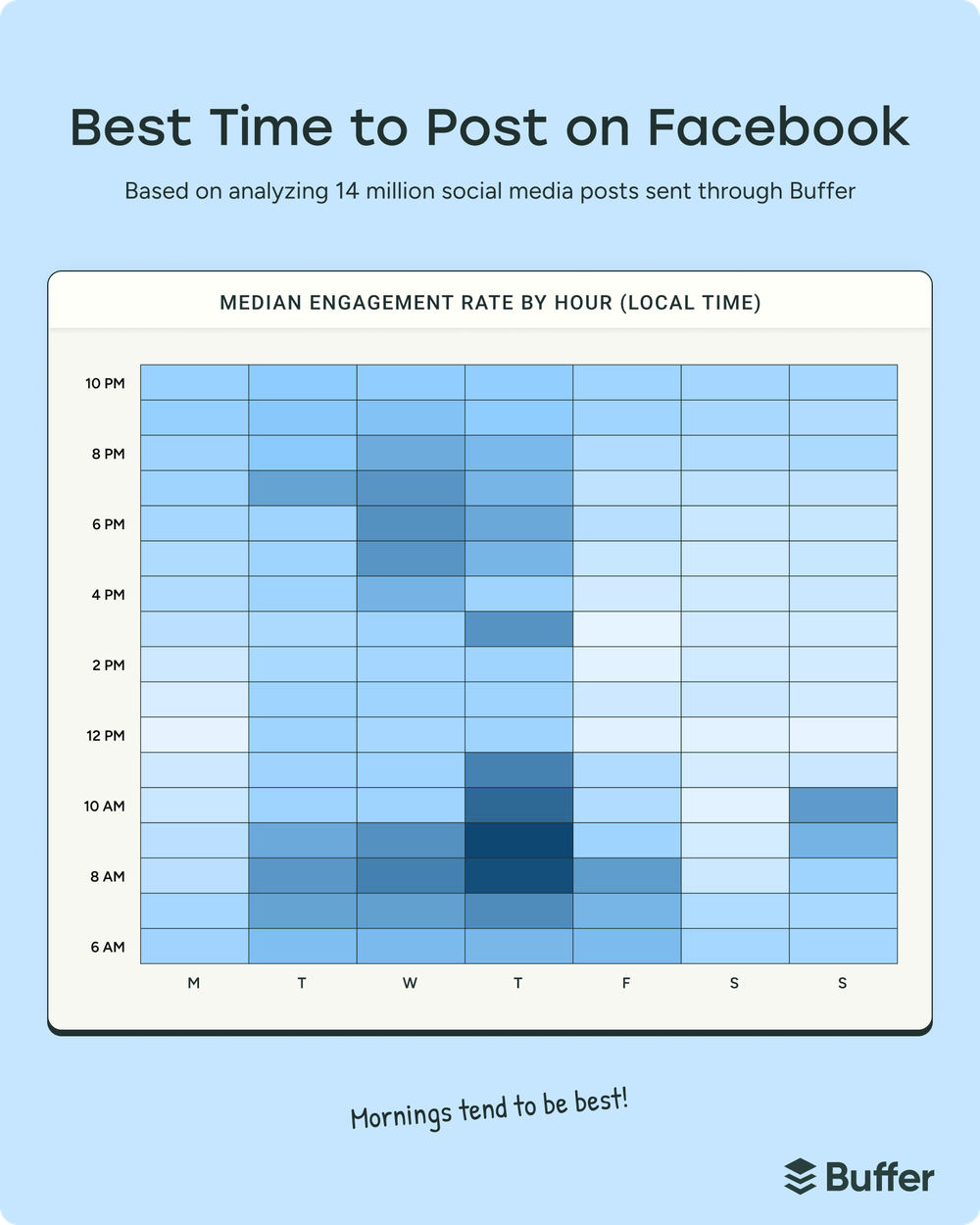
Note that this doesn’t necessarily mean this is when audiences are up and consuming your content — it’s likely that posts need some time to gain momentum on the feed. Either way, it’s when the best-performing posts went out, and unless you’re free every Thursday at 9 a.m., scheduling is how you hit that slot.
In my group, for example, I’m reaching two main audiences: South Africa (SAST) and the US, so I need to find a time that works for both. I aim to hit the South African audience at lunchtime, and the US audience first thing in the morning as they start their day.
5. Better content planning and control
I know that random posting can feel a bit like throwing spaghetti at the wall to see what sticks. But when you schedule posts, you’re in the driver’s seat.
You can plan strategically, so you’re not posting three promos in a row and then nothing for a week. This also allows you to plan for time-sensitive content, ensuring it goes out when it’s most relevant.
It’s also much easier to keep a consistent voice when you’re in control of your posting schedule. Instead of lashing out with something spicy and off-brand because you’ve had a bad day, planning ahead means a bad day doesn’t end up on your Page.
For me, scheduling Facebook posts provides peace of mind that everything’s taken care of, leaving me with more brain space to a) do my real job, and b) focus on creating even more awesome content.
4 quick tips for scheduling Facebook posts
1. How often to post
We recommend posting to Facebook up to once or twice a day, but five to seven solid posts a week is a realistic place to start.
⚡️ Action step: Plan a week’s worth of posts in one sitting and schedule them in one go.
2. Best time to post
Our data suggests that early weekday mornings are the best time to post on Facebook.
⚡️ Action step: Use Buffer’s Insights feature to help you find the best times to post.
3. Stay consistent with goals and streaks
Buffer’s posting goals and streaks features show you at a glance whether you’re keeping to the schedule you set, and Buffer’s data team ties that consistency to five times more engagement per post.
⚡️ Action step: Set a posting goal in Buffer and use the streak tracker to keep yourself accountable.
4. Track analytics and engagement
Analyzing post performance helps you improve future content.
⚡️ Action step: Use Buffer’s Insights dashboard to track engagement, reach, and click-through rates across posts. Repurpose or expand on what worked and ditch what didn’t.
Facebook post scheduling FAQs
Can you schedule a post on a personal Facebook profile?
Not on a regular personal profile. Facebook’s scheduling tools work on Pages, profiles in professional mode, and Groups, so turning on professional mode is the way to get scheduling on your own profile. Third-party tools can’t auto-publish to personal profiles because Meta’s API doesn’t allow it, and Buffer doesn’t connect to profiles at all.
How do I find my scheduled posts on Facebook?
On the Facebook app, go to your Page or professional profile, tap ‘Manage Posts’ to see everything you’ve scheduled. Tap the ‘Filters’ button and change the post status to scheduled. Tap on each scheduled post to edit, delete, or reschedule it.
On Meta Business Suite: click ‘Business Dashboard’ > ‘Planner’ in the left-hand menu. You’ll be taken to a content calendar, where you can hover over each scheduled post to edit, delete, or reschedule it.
Can you edit a scheduled post on Facebook?
Yes. On the Facebook app, tap ‘Manage Posts’ from your Page or professional profile. Tap the ‘Filters’ button and change the post status to scheduled. Tap on each scheduled post to edit, delete, or reschedule it. In Meta Business Suite, go to ‘Business Dashboard’ > ‘Planner,’ then hover over each scheduled post to edit it.
Can you schedule posts in a Facebook Group?
Yes, if you’re an admin or moderator: write your post in the Group, tap the calendar icon, and set a date and time. Groups also support recurring posts. Meta Business Suite doesn’t support Groups, and Buffer schedules Group posts as a mobile notification that you publish yourself.
Can you schedule Facebook Reels and Stories?
With Buffer, yes. You can schedule reels to Facebook Pages (3 to 90 seconds, vertical 9:16 video) and stories (one image or video per story, with videos up to 60 seconds).
Does scheduling Facebook posts hurt your reach?
No. Using scheduling tools won’t hurt your engagement — a 2020 analysis found that Facebook posts scheduled through third-party tools got 10.3% more engagement than posts published natively. Scheduling won’t fix weak content, though. It just gets your posts out on time and frees you up to reply to comments, which is the part that actually moves engagement.
Over to you
Scheduling didn’t turn me into a more organized person. It just meant my group kept ticking over while I was busy with diapers. Whether you use the Facebook app, Meta Business Suite, or a scheduling tool like Buffer, the win is the same: you decide what to post once and stop having to remember. Happy scheduling!
If you’re a freelancer and want to see how this plays out in a real group, come say hi in Freelancers Who Work Smart, Not Hard.