
What is an Instagram Broadcast Channel?

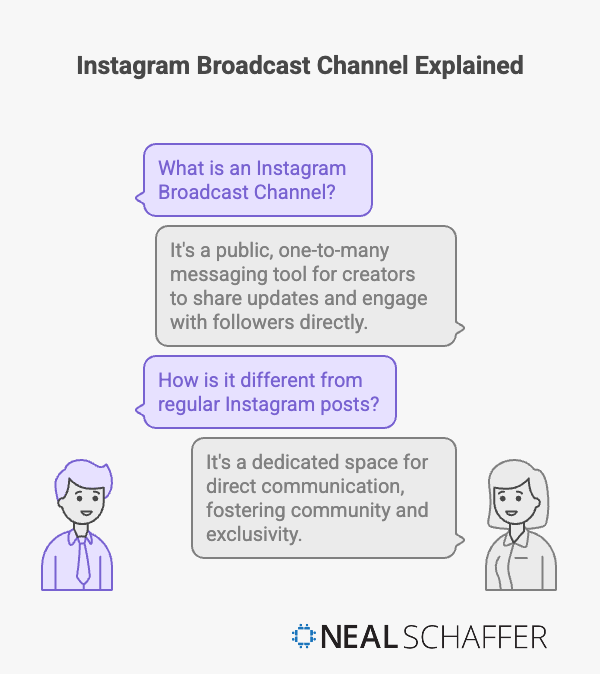
Instagram Broadcast Channels are direct communication tools that let creators send one-to-many messages to followers who opt in to join. Unlike regular posts or Stories, only the creator can send messages in these channels, while followers read, react with emojis, and participate in polls. Think of it as a private newsletter meets exclusive fan club, where you control the conversation and followers get behind-the-scenes access they can’t find anywhere else.
What works is treating Broadcast Channels as your direct line to engaged followers. You can share text, photos, videos, voice notes, polls, and clickable links without the noise of comments or the algorithm limiting your reach.
You’re getting a tool that builds real community connection, not just broadcast reach. The key is understanding that this feature shifts Instagram from a discovery platform to a relationship platform for your most dedicated audience.
What Are Instagram Broadcast Channels?
Broadcast Channels function differently from regular Instagram features you already use.
These channels are dedicated chat spaces where only you can send messages. Your followers join voluntarily, react to your content, and participate in polls, but they can’t reply publicly or start their own threads.
The truth is, most creators miss how this changes audience dynamics. Regular posts get lost in feeds. Stories disappear after 24 hours. DMs don’t scale when you have thousands of followers.
Broadcast Channels solve all three problems at once.
You get a permanent space that followers actively choose to join. Content stays visible until you delete it. Messages reach everyone who joined without worrying about when they check Instagram.
Early data from Instagram is already suggesting that engagement within broadcast channels is on average 15-20% higher than traditional posts
How Broadcast Channels Differ From Other Instagram Features
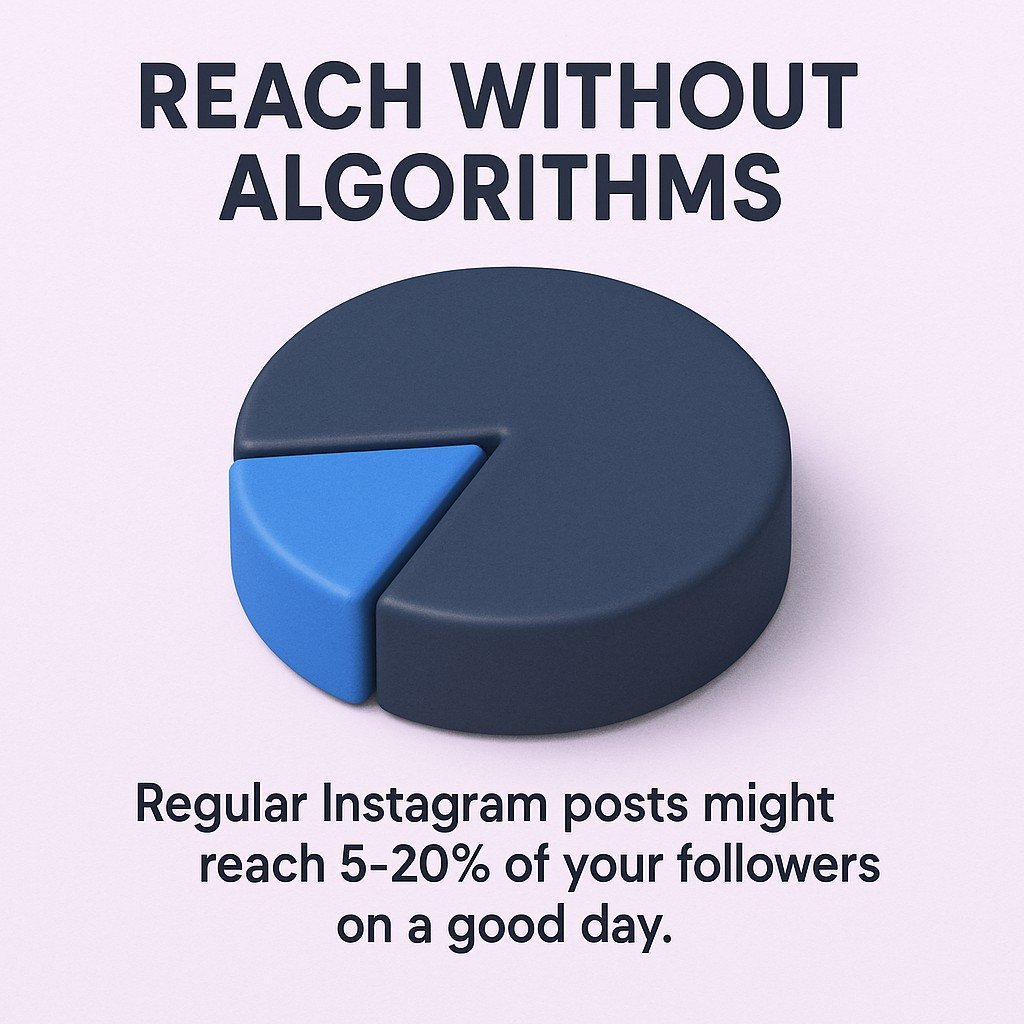
Regular Instagram posts compete with millions of other posts in feeds controlled by Instagram’s algorithms. Your content might reach 5-20% of your followers on a good day, although that number seems to always be on the decline for most accounts.
Stories vanish after one day, forcing you to constantly create new content just to stay visible.
DMs work great for one-on-one conversations but become impossible to manage when you’re trying to update hundreds or thousands of followers.
Broadcast Channels flip this model. Everyone who joins sees your messages. No algorithm decides who gets notified. No 24-hour expiration deadline creates artificial urgency.
The channel lives in Instagram’s inbox alongside regular DMs, making it easy for followers to find and check regularly.
Who Can Create Broadcast Channels
Instagram currently limits Broadcast Channel creation to creators with professional accounts.
You need to switch from a personal profile to a Creator account through your Instagram settings. The process takes about 30 seconds and unlocks additional analytics and features beyond just Broadcast Channels.
Once you have a Creator account and meet Instagram’s minimum follower threshold, the option to create a Broadcast Channel appears in your inbox.
Meta continues expanding access to more creators as the feature develops.
How Instagram Broadcast Channels Work
Now that you understand what Broadcast Channels are, you need to see how they function in practice.
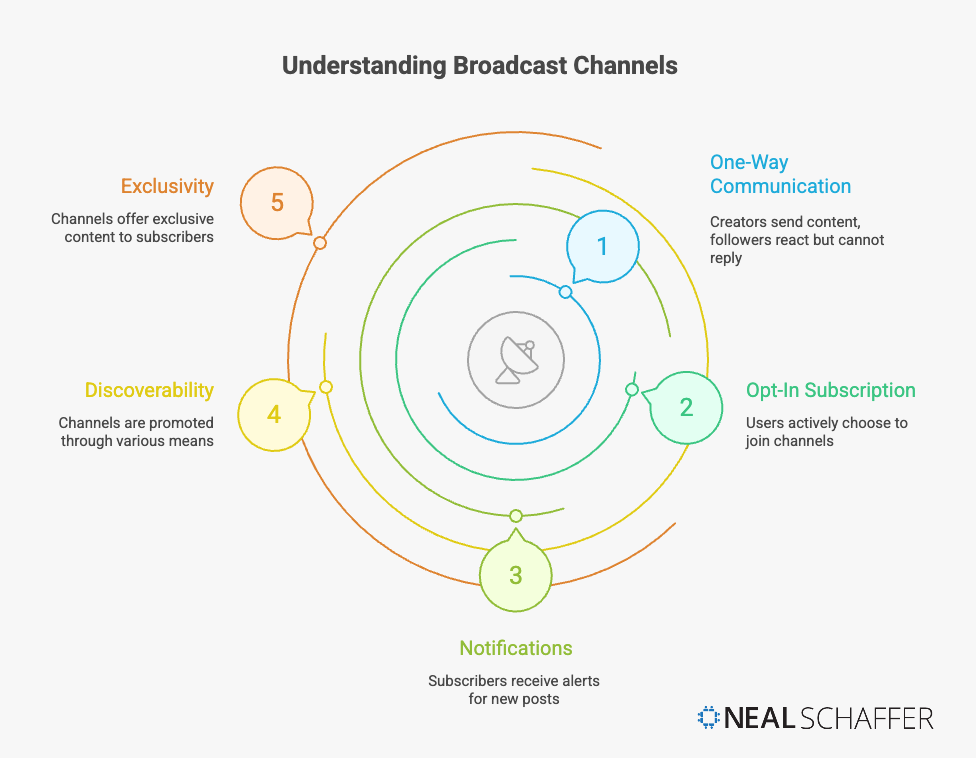
The channel operates through Instagram’s inbox system. When you create a channel, Instagram generates a unique join link you can share anywhere.
Is Your LinkedIn Not Delivering Results?
Just released: my new book to help professionals, entrepreneurs, and business owners maximize LinkedIn for real growth.
With years of LinkedIn expertise, Maximizing LinkedIn for Business Growth offers actionable steps to build your brand, expand your network, and drive results.
Start leveraging LinkedIn like never before—grab your copy now! Click the cover or button below to buy on Amazon.

Followers who join get added to your channel’s subscriber list. They receive notifications when you post new content, similar to how push notifications work for regular Instagram activity.
What makes this powerful is the notification control. Followers who join your channel are actively requesting updates from you. They want to hear from you directly.
The Content Flow Inside Channels
You post content to your Broadcast Channel from your Instagram inbox. The interface looks similar to regular Instagram messaging but optimized for one-way communication.
When you send a message, photo, video, or poll, every channel member gets a notification. They can tap the notification to open the channel and view your content.
Members see all previous messages in the channel when they join. Nothing gets hidden or archived automatically. This creates a growing archive of exclusive content only available to channel subscribers.
Followers react with emojis and vote in polls, but they can’t start conversations or @ mention each other. The channel stays focused on your content and your message.
How Followers Experience Broadcast Channels
From the follower perspective, joining a Broadcast Channel feels like getting VIP access.
They see your channel invitation through a Story sticker, a link in your bio, or a direct share from you. One tap joins them instantly.
The channel appears in their Instagram inbox with a special broadcast icon. New messages show unread notification badges just like regular DMs.
When they open the channel, they scroll through your messages chronologically. They see what other members are reacting to and can add their own emoji reactions.
If they change their mind, they can leave the channel anytime without notifying you or other members.
How to Create an Instagram Broadcast Channel
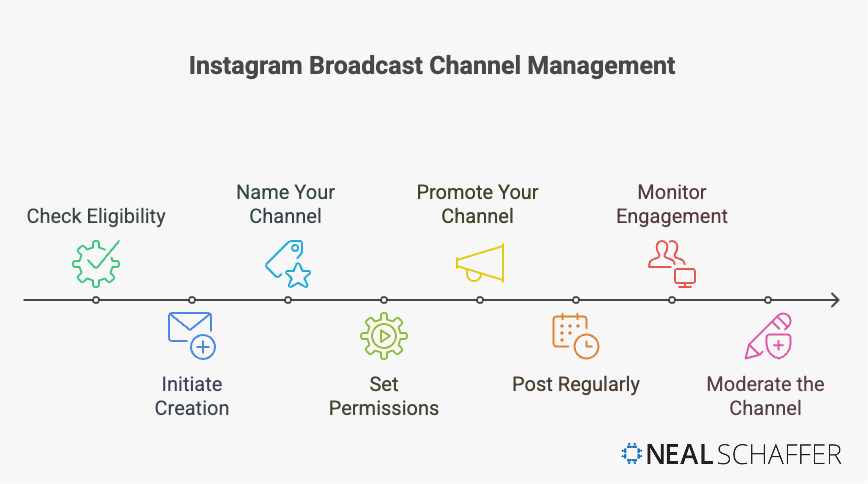
Creating your first Broadcast Channel takes about two minutes once you meet the requirements.
Open Instagram and tap the message icon in the top right corner. Look for the compose message icon, then select “Create Broadcast Channel” from the options.
Instagram prompts you to name your channel. Choose something specific that tells followers what type of content they’ll receive. Generic names like “Updates” don’t work as well as specific names like “Behind the Scenes” or “Product Drops.”
You can also add a channel description that appears when people view your channel invitation. Use this space to set expectations about posting frequency and content types.
Configuring Your Channel Settings
After naming your channel, Instagram offers several configuration options.
The channel visibility setting determines who can find and join your channel. Most creators choose “Public” to maximize reach, but you can select “Private” if you want to manually approve each member.
You decide whether members can leave reactions and vote in polls. Keeping both enabled increases engagement and helps you gauge which content resonates.
The notification settings control whether you receive alerts when members join or leave. Turn these off if you expect rapid growth to avoid notification overload.
Set an end date if you’re creating a temporary channel for a specific campaign or event. Leave it open-ended for ongoing community building.
Publishing Your Channel
Once you complete the setup, Instagram creates your channel and generates a shareable join link.
Tap “Share Channel” to post an invitation to your Instagram Story using the dedicated Story sticker. This sticker shows your channel name and allows one-tap joining directly from the Story.
You can also copy the join link and add it to your profile bio, website, or other social media platforms. The link works for anyone, even people who don’t follow you yet.
Your first channel message should explain what subscribers can expect. Tell them what you’ll share, how often you’ll post, and what makes this channel valuable.
How to Join an Instagram Broadcast Channel
Joining a Broadcast Channel as a follower takes one tap when you find a channel invitation.
The most common way to discover channels is through Story stickers. When a creator shares their Broadcast Channel in a Story, you’ll see a “Join Channel” sticker. Tap it once and you’re instantly subscribed.
Some creators add their channel join link to their profile bio. Tap the link in their bio and Instagram opens a channel preview page showing the channel name, description, and subscriber count.
Tap “Join” and the channel appears in your inbox immediately.
Managing Channel Subscriptions
All your joined channels live in your Instagram inbox alongside regular DMs.
Channels show a broadcast icon next to the name to distinguish them from regular conversations. Unread messages show notification badges like any other message thread.
To manage notifications for a specific channel, open the channel, tap the channel name at the top, and adjust notification settings. You can mute a channel while staying subscribed if you want to check it manually instead of receiving push notifications.
Leaving a channel is equally simple. Open the channel, tap the channel name, scroll down, and select “Leave Channel.” The creator won’t receive a notification when you leave.
How to Turn On Replies in Instagram Broadcast Channels
Instagram recently added the ability for creators to enable replies in Broadcast Channels, changing them from pure one-way communication to selective two-way interaction.
Open your Broadcast Channel from your Instagram inbox. Tap the channel name at the top to access channel settings.
Look for “Allow Members to Reply” in the settings menu. Toggle this option on to let channel members respond to your messages.
When replies are enabled, members see a reply option under each of your messages. They can send text responses that appear as threaded replies beneath your original message.
Managing Replies Strategically
Enabling replies increases engagement but also increases moderation needs.
You control which replies stay visible in your channel. Review member responses and delete any that violate Instagram’s Community Guidelines or don’t align with your channel’s purpose.
Consider enabling replies selectively for specific messages instead of keeping them on permanently. Ask a question in one message with replies enabled, then turn them off for your next announcement.
This approach gives you engagement benefits without overwhelming your channel with constant replies.
You can also set time limits on when replies are allowed. Enable replies for 24 hours after posting a question, then disable them to keep the channel organized.
How to Invite Others to Join Your Broadcast Channel
Growing your Broadcast Channel subscriber count requires active promotion across multiple touchpoints.
The Story sticker remains your most effective invitation method. Post regular Stories that include your Broadcast Channel sticker, especially when you’ve just shared valuable content in the channel.
Add your channel join link to your Instagram bio. This gives profile visitors an immediate way to subscribe without waiting for your next Story.
Strategic Channel Promotion
Link to your Broadcast Channel in regular Instagram posts by mentioning it in captions. Tell followers about the exclusive content waiting in your channel that they can’t get from regular posts.
Create dedicated content that teases channel exclusives. Post a partial tutorial in a Reel, then mention that channel members get the complete version with additional tips.
Use Instagram’s Stories features to showcase channel benefits. Screenshot interesting channel discussions, blur out specifics, and add text saying “Join my Broadcast Channel to see the full conversation.”
Cross-promote your channel on other platforms if you have multiple social media presences. Your YouTube community tab, TikTok bio, or email newsletter can all drive Instagram Broadcast Channel subscribers.
Collaborator Invitations
Instagram allows you to add collaborators to your Broadcast Channel who can help you manage content and moderation.
Open your channel settings and look for “Add Collaborators.” Search for the Instagram accounts you want to invite as collaborators.
Collaborators can post messages, share content, and help moderate replies if enabled. They can’t change channel settings or remove you as the owner.
This feature works well for brands with multiple team members managing social media or creators who want to feature guest experts in their channels.
How Brands Can Use Instagram Broadcast Channels
Broadcast Channels are valuable but underutilized features for driving engagement and conversion. Most brands miss the strategic applications because they treat channels like another place to broadcast marketing messages.
What works is using channels to create genuine value that followers can’t get anywhere else.
The potential is real: Nearly 20% of social shoppers in the United States have already seen shopping-related creator or influencer content in Instagram Broadcast Channels.
Product Launch Strategy
Build anticipation for new products by giving channel members first access to announcements, pre-order links, and limited-time offers.
Share behind-the-scenes content showing product development, manufacturing, or testing. This builds investment and excitement that generic product posts can’t match.
Create exclusive discount codes available only through your Broadcast Channel. This rewards engaged followers and gives you clear ROI metrics on channel effectiveness.
Your Instagram content strategy should treat Broadcast Channels as your innermost circle of engaged followers who deserve special treatment.
Customer Service and Community Building
Use channels to share company updates, policy changes, or service disruptions before they become public knowledge.
Answer frequently asked questions through channel messages instead of replying to hundreds of individual DMs. Post a detailed answer once and every channel member sees it.
Share customer success stories and user-generated content that celebrates your community. This builds loyalty and encourages other members to engage more deeply with your brand.
Integrate your Broadcast Channel with broader Instagram business strategies by promoting it through paid ads and influencer partnerships.
Content Distribution and Traffic Generation
Share blog post links, video content, or podcast episodes directly to channel members who’ve already shown interest in your brand.
This drives traffic without depending on algorithm performance or hoping followers see your regular posts.
Use polls to gather product feedback, content preferences, or market research data. Your channel members provide instant feedback from your most engaged audience segment.
Announce flash sales or limited inventory drops exclusively through your channel. The immediate notification system means channel members can act fast, increasing conversion rates.
| Use Case | Implementation | Key Benefit |
|---|---|---|
| Product Launches | Share early access links and exclusive previews | Higher engagement from interested buyers |
| Customer Updates | Post service changes and company news first | Reduced support inquiries |
| Content Distribution | Share new content with guaranteed visibility | Better traffic and conversion rates |
Rules and Guidelines for Instagram Broadcast Channels
Instagram applies its standard Community Guidelines to Broadcast Channels with some additional considerations for creator-to-audience communication.
You’re responsible for all content posted in your channel, including messages from collaborators if you’ve added any. Instagram holds channel owners accountable for maintaining a safe, respectful environment.
Prohibited content includes hate speech, harassment, misinformation, spam, and anything that violates Instagram’s broader terms of service. The fact that channels feel more private than public posts doesn’t change these rules.
Content Moderation Responsibilities
If you enable replies in your channel, you must moderate member responses to ensure they comply with Community Guidelines.
Remove replies that harass other members, promote spam or scams, or violate Instagram’s policies. Failure to moderate can result in your channel being disabled or your account facing restrictions.
Instagram provides reporting tools within channels. Members can report inappropriate messages or problematic creator behavior directly to Instagram’s moderation team.
Take these reports seriously. Multiple reports or violations can lead to permanent loss of Broadcast Channel creation privileges.

Best Practices for Channel Management
Set clear expectations in your channel description about what content you’ll share and how often you’ll post.
Avoid excessive promotional content that feels like spam. Channel members joined for value, not constant sales pitches. Balance promotional messages with genuinely helpful or entertaining content.
Respect member privacy by never sharing channel member information, screenshots of private responses, or subscriber counts for competitive comparison.
Use Instagram management tools to schedule channel messages during optimal times without logging in constantly. This maintains consistency while managing your time effectively.
Instagram continues rolling out new features and enhancements for Broadcast Channels, including interactive replies and better analytics. Stay updated on changes that might affect how you use channels or what rules apply.
Bypass the Algorithm with Instagram Broadcast Channels
Instagram Broadcast Channels give you direct access to your most engaged followers without algorithm interference or 24-hour content expiration.
Start by creating your channel with a specific purpose and clear value proposition. Promote it consistently through Stories, your bio, and regular content mentions.
Use channels for exclusive content that rewards subscriber loyalty. Behind-the-scenes access, early announcements, and special offers work better than repurposing content from your regular feed.
The key is consistency. Post regularly enough that subscribers remember why they joined, but not so frequently that notifications become annoying.
Your first action today should be switching to a Creator account if you haven’t already. Check your Instagram inbox for the Broadcast Channel creation option. If it’s available, create your channel and share it in your next Story.
Focus on building relationships through genuine value, not just broadcasting marketing messages. That’s what separates effective Broadcast Channels from abandoned ones.
Actionable advice for your digital / content / influencer / social media marketing.
Join 13,000+ smart professionals who subscribe to my regular updates.